Gmail like a pro
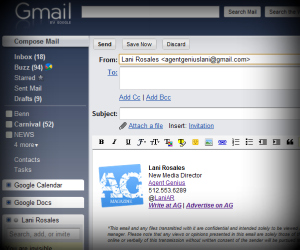
The reason HTML signatures are so important is that without it, your signature can’t have an image, links or customized features, rather the standard Gmail signature is standard font in a standard color with limited options. This is valuable real estate, use it wisely.
When using Google Chrome, there is not a supported addon allowing you to add a HTML signature to your Gmail which is surprising, but we’ve found a simple hack that allows you to work around that. We’ve tested this (and currently, I use it for my own email) and you can create signatures for a variety of purposes (I have one for AG, one for NML and one for personal emails) with a simple hack.
The simple hack
- Go to GeekFG and save that website in case you have to edit your signature(s) later.
- Format your signature. Don’t use too many links or graphics, include basic information and if you’re overly cautious like me, include a disclaimer or privacy statement at the end.
- Select “insert signature above reply” or you’ll have to copy and paste over and over again.
- When finished, click “go to step 2.”
- Drag and drop the new signature link that is now a bookmarklet to your toolbar or somewhere easily accessible in Google Chrome.
- Start from step one to create another signature, repeat as many times as you need to.
Note: there is not a “save signature” option, so be sure to save the HTML somewhere on your desktop as you’ll have to start from scratch if you notice something wrong. Trust me, it can be a pain, so be prepared and avoid that.
This simple hack gets you one step closer to living in the cloud and one step away from your dependence on Outlook and the like. We know, we know- you can quit whenever you want, but we’re here to help!
If you use Firefox, here is a Firefox extension to add a HTML signature to your Gmail.