Making Gmail work for you

So the good news is that we’re here to make you deliriously happy. Well, Google is, but we’ll be the messenger and enjoy the happy times together!
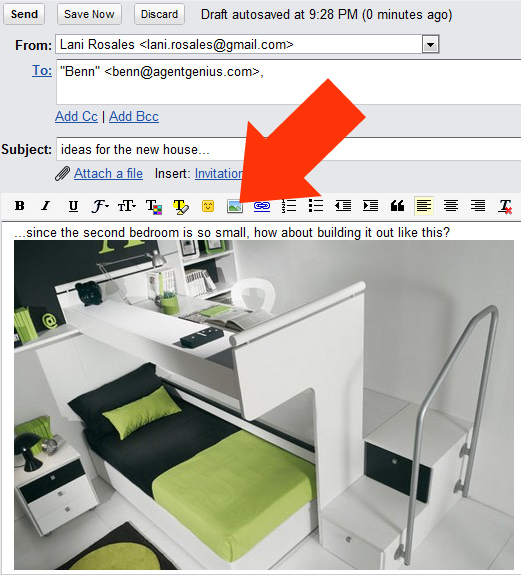
When you’re in Gmail, all you have to do is click “Settings” on the top right, select the “Labs” tab, and scroll until you see “Inserting images,” simply enable and you now have the ability to insert images into an email.
Now, you’ll have an image icon next to the other editing options (just below where you attach files). Then, you can upload an image from your computer or tell it a URL to pull into the email. Other Gmail users will still have to click “display images below” or “always display images from [your email address]” to see the images you’ve embedded.
Here’s how it looks: