
Tuesday, January 13, 2026

Unlock AG Pro Today

Why Now?

AG Pro gives you sharp insights, compelling stories, and weekly mind fuel without the fluff. Think of it as your brain’s secret weapon – and our way to keep doing what we do best: cutting the BS and giving you INDEPENDENT real talk that moves the needle.

Limited time offer: $29/yr (regularly $149)
✔ Full access to all stories and 20 years of analysis
✔ Long-form exclusives and sharp strategy guides
✔ Weekly curated breakdowns sent to your inbox

We accept all major credit cards.

Pro

/ once per week

Get everything, no strings.

AG-curious? Get the full-access version, just on a week-to-week basis.
• Unlimited access, no lockouts
• Full Premium archive access
• Inbox delivery + curated digests
• Stop anytime, no hoops

$
7
$
0

Get your fill of no-BS brilliance.

Pro

/ once per year

All in, all year. Zero lockouts.

The best deal - full access, your way. No timeouts, no limits, no regrets.
A year for less than a month of Hulu+
• Unlimited access to every story
• Re-read anything, anytime
• Inbox drop + curated roundups

$
29
$
0

*Most Popular

Full access, no pressure. Just power.

Free
/ limited

Useful, just not unlimited.

You’ll still get the goods - just not the goodest, freshest goods. You’ll get:
• Weekly email recaps + curation
• 24-hour access to all new content
• No archive. No re-reads

Free

Upgrade later -
we’ll be here!

Unlock AG Pro Today

Why Now?

AG Pro gives you sharp insights, compelling stories, and weekly mind fuel without the fluff. Think of it as your brain’s secret weapon – and our way to keep doing what we do best: cutting the BS and giving you INDEPENDENT real talk that moves the needle.

Limited time offer: $29/yr (regularly $149)
✔ Full access to all stories and 20 years of analysis
✔ Long-form exclusives and sharp strategy guides
✔ Weekly curated breakdowns sent to your inbox

We accept all major credit cards.

Pro

/ once per week

Get everything, no strings.

AG-curious? Get the full-access version, just on a week-to-week basis.
• Unlimited access, no lockouts
• Full Premium archive access
• Inbox delivery + curated digests
• Stop anytime, no hoops

$
7
$
0

Get your fill of no-BS brilliance.

Pro

/ once per year

All in, all year. Zero lockouts.

The best deal - full access, your way. No timeouts, no limits, no regrets.
A year for less than a month of Hulu+
• Unlimited access to every story
• Re-read anything, anytime
• Inbox drop + curated roundups

$
29
$
0

*Most Popular

Full access, no pressure. Just power.

Free
/ limited

Useful, just not unlimited.

You’ll still get the goods - just not the goodest, freshest goods. You’ll get:
• Weekly email recaps + curation
• 24-hour access to all new content
• No archive. No re-reads

Free

Upgrade later -
we’ll be here!

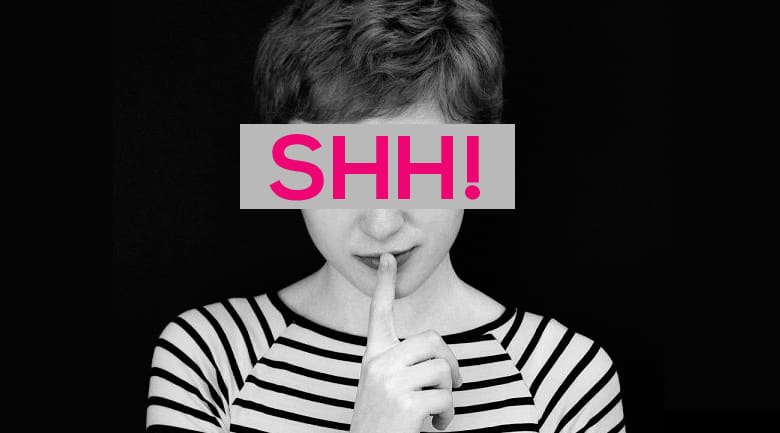
How to mute notifications in Windows 8.1 to remain productive

Shut those notifications up!

Just like Apple’s “Do Not Disturb” and Android’s “Quiet,” Windows 8.1 offers users a much needed alternative for those persistent notifications. These notifications can be very helpful, alerting you to new tweets, emails, and Facebook messages, but if you are working on a project or ready to get some sleep, they can prove to be a nuisance.

If you do not want to see notification for a specific period of time, such as while you are in a meeting, or getting ready for bed, you can use the “Quiet Hours” feature. You no longer need to turn off each app individually. From the charm bar (or Ctrl + C), click settings and then “search and apps,” then “notifications.” You can then select the time frame you want your device to be silent. While your device is “quiet,” it will not light up, notify you, or Notifications will automatically turn back on when the specified quiet period ends.

How to keep calls rolling in

Also, if you want to turn notifications off but still receive phone calls from a Windows phone, you can do that as well. Under the notifications menu above, simply toggle the slider under “receive calls during quiet hours” to “on” and you will receive important calls, but only from telephones, no Skype calls will come through and no notifications. You can change this setting any time, allowing you to adjust your notification alerts with your schedule.

It should be noted however, as soon as you pick up your Windows 8.1 device, bringing it out of sleep mode, Quiet Hours are automatically turned off. So, you cannot pick up your phone to check email and expect Quiet Hours to stay in place for other notifications (which is not the case with Android and Apple). But, this is still better than manually turning off notification for each individual app when you need a break from constant notifications.

Jennifer Walpole, Sr. Staff Writer
Jennifer Walpole is a Senior Staff Writer at The American Genius and holds a Master's degree in English from the University of Oklahoma. She is a science fiction fanatic and enjoys writing way more than she should. She dreams of being a screenwriter and seeing her work on the big screen in Hollywood one day.

1 COMMENT

Subscribe
Notify of
wpDiscuz
1
0
What insights can you add? →x
()
x
Exit mobile version