
So you want to Shake Up your WordPress Plugins?
Let’s rock!
I’m assuming here that you have a hosting account and have your domain set up, and you’re logged in (if not read this first). I’m navigating here to my control panel, and then to ‘file manager’ and going directly to the root directory of my website where I have WordPress installed as shown below.

From here I want to navigate to the ‘wp-content’ folder in my root domain where WordPress is installed and then click on Plugins. So now I have my file manager open to mydomain/wp-content/plugins/.
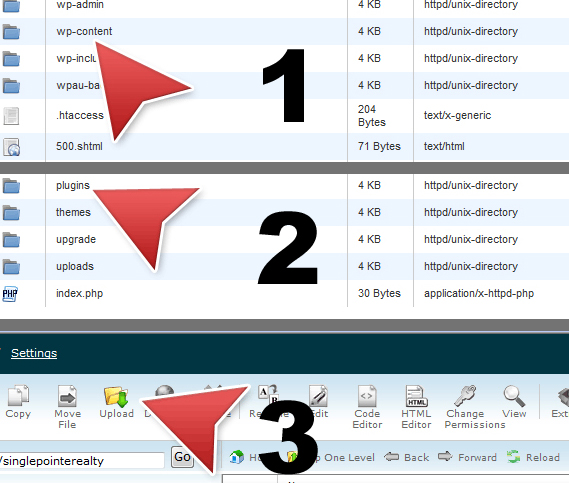
I’ve already downloaded the WordPress Plugin and read the install or readme files of the plugin I want to use and have it still zipped on my desktop so that I can navigate to it easially from the file manager.
Now, I will simply upload the plugin into my plugins folder.

Once you see that the upload is complete, close the upload window and get it out of your way.
Back in your file manager, you should see a small brown box with the name of your plugin. The brown box indicates a zipped file, so we need to right click and extract it.

Once extracted, you should see a blue folder icon appear- this is your new plugin.

In your browser, open a new tab and log into your WP-Admin panel. Once here you’ll want to navigate to your your plugins folder. Scroll down and locate the plugin, (they’re typically in alphabetical order).

Go ahead and activate the plugin.

You should see at the top of the screen a message indicating the plugin has been activated without error.
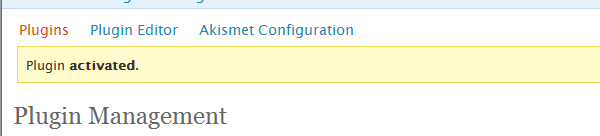
If you do recieve an error, simply retrace your steps using the Readme file enclosed in the download. If you have executed this to the letter, and still have an error, you’ll need to go to the plugin home for support. I’ve also found it very useful to spend a little time googling about the plugin in general to see what sorts of other issues folks have had and if there is a fix for my issue. Nine out of Ten times I find the error was my own in missing a simple step in the instruction. The most common error is not reading the README to learn of other plugins that partner with the plugin I’m attempting to use.
Simply navigate to Options and configure your new WordPress Plugin!
Want to request a WordPress Tutorial, hit the contact button and make a suggestion!