This year, Benn and I broke up with Palm and hooked up with HTC Evo and have loved every minute of it. Believe it or not, the most common response we get from iPhone users is, “oh that’s so cool, maybe I should switch.” But the worst kept secret in the EVO world is that the battery doesn’t last all day like an iPhone (I guess that’s the price you pay for being able to run multiple processes simultaneously).
The number one question I get from fellow EVO users is, “how do I save my battery life?” The extended batteries are bulky, heavy and require more expensive cases so naturally, we opted to keep the streamlined look of our sexy phones and research and tinker with battery saving options. There are several ways to ensure you’re getting the most out of your battery and we use ALL of these:
- While on the home page, click the round “Menu” button. On the bottom right, click “Settings.” Then, click “Accounts & sync” and the first option “Background data” is automatically checked. Uncheck it. This means that it won’t check your email or Twitter every 10 seconds and you’ll manually check it whenever you want to. This process is a huge battery drain. To access the Android Market and other apps, it will force you to turn it back on, so remember to turn it back off when done.
- Make sure in your second screen on the left has all of the following options off (the button will look like it’s slid down and it won’t be green): 4G, Wi-Fi, Bluetooth, GPS, Hotspot. Turn these on manually as needed.
- Use a black wallpaper and do NOT use a live wallpaper that moves- moving wallpaper and white backgrounds drain your battery like crazy.
- Remove anything that updates itself all the time like the bookmarks widget (which updates screenshots every hour or so) and the big huge clock that comes standard (remove any clock, there’s already one natively up top on your home screen).
The final suggestion we have found for saving your battery comes with controversy, it’s called the “Advanced Task Killer.” It’s a process killer and it’s like pushing ctrl+alt+delete on your computer and killing programs that are running. It’s not 100% healthy because they want to run in the background and skeptics say it has no impact on your battery, but I will tell you from personal experience, that this is the number one battery saver for EVO users.
Here’s how you get the app:
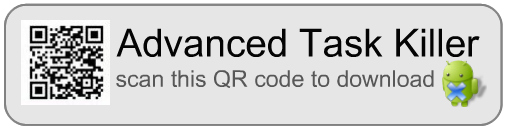
Scan in the above QR code or on your EVO go to the Android Market and search for the “Advanced Task Killer” (it’s free). Download it and make it a desktop icon (done by pressing the “+” button on the home screen, then App, then Advanced Task Killer). Then, when it’s all complete and it’s on your desktop, click the little android robot and it will show you all of the processes running. Check mark what you want killed and hit the grey “KILL selected apps” button at the top. Voila!
All of the tips in this post are how we keep our EVOs running all day long, we only charge them at night whereas when we first got them, it was every few hours. This was the only complaint we had and now that we don’t have it, we are huge EVO fanatics and we’ll live happily ever after!