One Righteous WordPress Tutorial

People ask me every day how hard this is and often ask, should they? We’ll I cannot answer the second question, but hard? No way. So we’ve decided that we’re going into the how to business to help some of you noobs (new folks like yourself) catch up!
First…
You probably already have a domain name and you either want to have you blog attached to your existing website, or maybe you want a stand alone domain that is totally separate from your existing website. Either way, I’m writing this from the perspective that you want to add your blog to an existing site and sexy domain name.

Bluehost.com
If you haven’t purchased a domain, have a hosting account, and don’t even know where to begin, I recommend starting at Bluehost.com. Everyone has a choice, but for the beginner, the control panel, cost of the domain and a private domain (allows you to keep your number and email private from spam bots) availability for no additional fee makes $10.00 a year per domain pretty inexpensive. Their hosting anually will run you about $75 as a flat fee. Host as many domains on the same account for the same $75 bucks and $10 per domain, not bad. This makes for a great way to get into creating individual listing pages later, but for now, we’re starting with wordpress. Tell BlueHost I sent you and you’ll receive a $0 discount, yay you!
What are some other good reasons to use Bluehost? WordPress recommends them, I recommend them, and because it just makes sense for you as a beginner. It’s expandable, upgradeable, non-intrusive and won’t drink your last beer when you’re not looking. Perfect, right??
Let’s Get Started
(login to your account) Note the always easy to find home button in the top left corner, you’ll use it more than a few times. Note all of that free swag in the in top two boxes! We know how you Realtors love the Swag- but in this case, hands off, that’s the reward for completing this class!

Let’s all assume we have a domain name now purchased on bluehost.com and want to plan for the future. We’ll want the base of the domain www.agentgenius.com to remain open for use with our primary website, so I’m creating tutorial.agentgenius.com (You may want to create blog.yoursite.com or city.yoursite.com- skys the limit!) for our use here. If this will be your first purchase of a domain, create your account and buy it here- you will thank me for this later!
Creating the subdomain

Simply locate the icon ‘subdomains’ on the control panel after logging in. Once there, enter in the first box the new name of the sub domain in the first empty box. Leave the next box (document root) blank as it will populate itself when you click ‘create.’ Give this a minute as it can take a few seconds (take a drink of your beer here, and maybe have a smoke- we’ll wait). Once complete, click the box in the upper top right to return to the control panel after verifying the new subdomain is listed in the list below.
Setting up WordPress

Yay, you’re so close, can you feel it? Great! Locate the Fantastico icon (shown above) on the control panel main page, click it. I also advise having another drink of that beer and change the channel on the television.
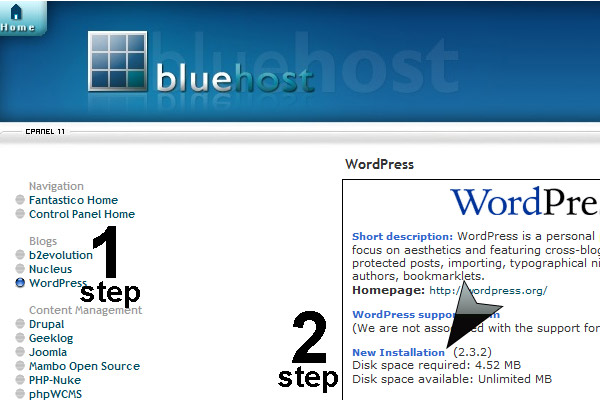
Once here you see a long list of free user platforms including WordPress. Simply click on WordPress, and then click the New Installation icon as I’ve demonstrated above. Again, take a look at all that free Swag to the left… ooooh so sexy! Hands off bub. We ain’t finished yet.
Filling in the blanks
After clicking new installation, you’re presented with the list of domains you own, including the new ‘blog.yoursite.com.’ Select the domain you wish to install WordPress on. Below that, you’ll see it asks you to answer a few administration questions (oh yeah, WordPress can handle it, just answer the question Mike!). Skip the ‘Install in directory’ box and move below it. Here you will place basic login information that you’ll need later to login to your new WordPress site. You’ll also need to fill in your email infomation so write all of this down (WordPress can be as bitchy as that receptionist you almost back slapped at the office last week. Easy there Betty.).
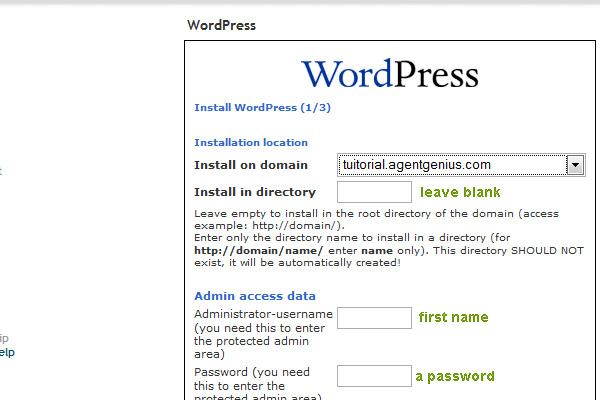
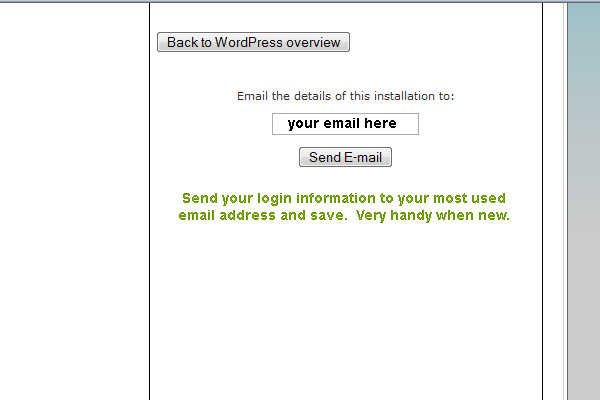
Simply click the ‘Install Wordpres’ button and a new page will appear offering you an opportunity to email all of your login information, including the new admin page to log into your new site. As I demonstrate below, it is very simple and you should save this information for later until you’re comfortable getting in and out of your new WordPress site. Don’t you love those moments when you know you know your damn password but what in the hell did you make up as a screenname this time? Ugh… Compose/Moving on.
Guess What?!
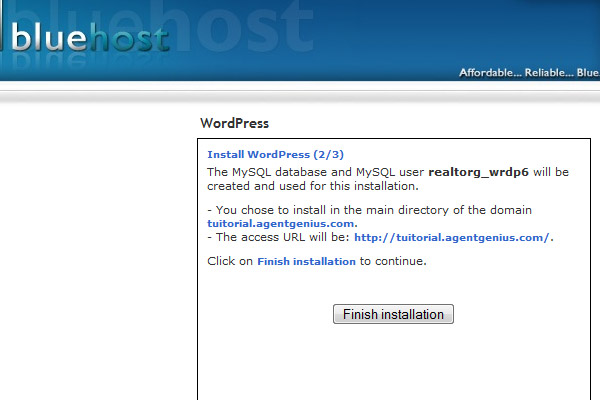
WordPress is installed and your site is now live!
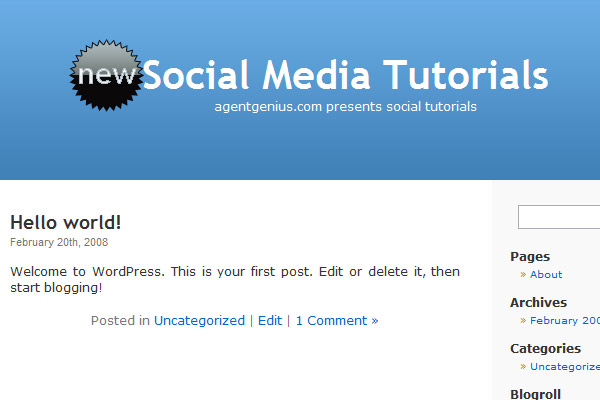
Oh God, now what?!
Navigate to your new site! In this case it’s tutorial.agentgenius.com. So bookmark us and we’ll update you via RSS as we go along in this process!
If you have questions on setting up your WordPress, leave a message there in the comments- we’ll see if we can walk you through it. I’ve also set up an additional secret WordPress if you’re interested in logging in and looking around at the administration side.
Why are you still here? Shouldn’t you be drinking that beer in celebration and yelling at your husband to get your damn purse so you can get your blog on? Yes… I believe it’s that time.
Enjoy
Next, I’m going to show you the backend- not my backend, but the WordPress backend and how to get your own unique theme set up and the in and out of how to manage it. You’ve got 24 hours! So hurry up!